WiFi Connected But Internet Not Working? Here’s Why and How to Fix It Fast
Is your WiFi connected but no internet access? Learn why your WiFi shows connected but no internet works and how to fix it in minutes with our 2026 guide.
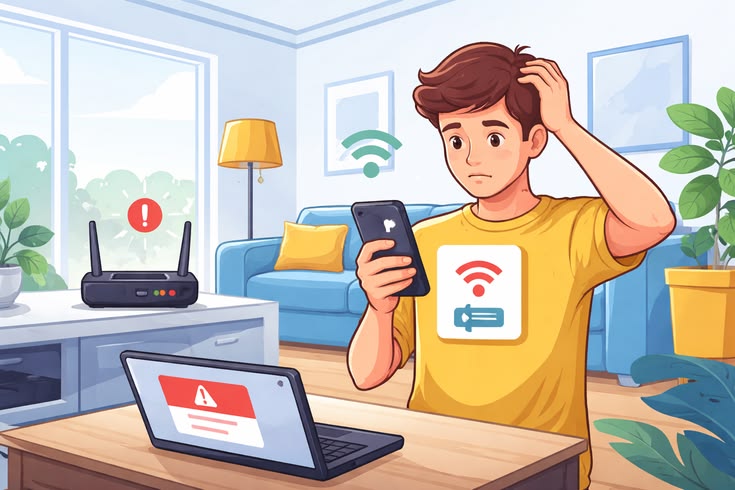
You open your laptop, the WiFi icon shows full bars, and yet nothing loads. No websites open. No videos stream. No emails sync. If you are dealing with WiFi connected but no internet, you are staring at one of the most frustrating tech problems out there. The connection looks perfect, but the reality is completely different.
The good news is that this issue is usually fixable in under ten minutes. You rarely need a technician or new equipment. This guide walks you through exactly why your WiFi connected but no internet access happens and shows you proven steps to get back online fast.
Why Is My WiFi Connected But Not Working?
Your device talks to the router just fine. That is why the WiFi symbol looks happy. The breakdown happens between your router and the actual internet. Think of it like a phone call where you can hear the dial tone but the person on the other end never picks up.
Several things cause this disconnect. Some are simple hiccups. Others need a bit more digging. Understanding the real cause saves you from randomly rebooting things and hoping for the best.
Here are the most common reasons why is my WiFi connected but not working:
- Your internet service provider is having an outage in your area
- The router lost its connection to the ISP and needs a refresh
- IP address conflicts between devices on your network
- Outdated or corrupted network adapter drivers on your device
- DNS server issues preventing websites from resolving
- A firewall or antivirus blocking internet access by mistake
- The router firmware is outdated and buggy
Before you start troubleshooting, check if other devices in your home have the same problem. If your phone also shows WiFi connected but no internet, the issue is likely your router or ISP. If only one device is affected, the problem lives on that specific machine.
WiFi Shows Connected But No Internet Windows 10/11? Start Here
Windows users see this problem more than most because of how the operating system handles network adapters and updates. A bad Windows update can break your connection overnight. So can a driver that automatically updated to a buggy version.
The fastest first step is the built in Windows Network Troubleshooter. It catches simple issues like incorrect IP settings or disabled adapters. To run it, right click the WiFi icon in your taskbar and select Troubleshoot problems. Let it run completely. Sometimes it fixes everything in seconds.
If that does not help, try releasing and renewing your IP address. Open Command Prompt as administrator and type these commands one by one:
- ipconfig /release
- ipconfig /flushdns
- ipconfig /renew
These commands drop your old network configuration, clear corrupted DNS cache, and request a fresh IP address from your router. It sounds technical but takes under a minute.
Another common fix for WiFi shows connected but no internet Windows 10/11 is resetting your network stack. Go to Settings, then Network and Internet, then Advanced network settings. Click Network reset and restart your computer. This reinstalls your network adapters and sets everything back to default.
Fix WiFi No Internet Connection on Any Device
Sometimes the problem is not Windows specific. It happens on phones, tablets, Macs, and smart TVs too. These universal fixes work across every platform.
Restart Your Router and Modem
Unplug both devices from power. Wait a full thirty seconds. Plug the modem back in first. Wait until all lights stabilize. Then plug the router back in. This clears temporary glitches and refreshes your connection to the ISP. It fixes about half of all no internet access WiFi troubleshooting cases.
Forget and Reconnect to the Network
Your saved WiFi profile might have corrupted settings. On your device, forget the network entirely and reconnect from scratch. You will need to re enter your password, but this forces a completely fresh handshake between your device and router.
Check for IP Conflicts
Two devices with the same IP address create chaos. Restarting the router usually fixes this automatically. If it keeps happening, log into your router settings and extend the DHCP range so more addresses are available.
Switch DNS Servers
Your internet provider’s DNS servers might be down. Switch to public DNS servers like Google’s. Use 8.8.8.8 and 8.8.4.4 as your primary and secondary DNS. This change often restores access immediately even when everything else looks fine.
Disable VPN Temporarily
VPNs route your traffic through remote servers. If that server is down or overloaded, you get WiFi connected but no internet access even though your local connection is fine. Disconnect your VPN and test again.
Internet Not Working But WiFi Connected? Advanced Fixes
Basic steps did not work? These deeper fixes target stubborn cases.
Update Network Adapter Drivers
Outdated drivers cause silent failures. On Windows, open Device Manager, expand Network adapters, right click your WiFi adapter, and select Update driver. Choose Search automatically for drivers. If Windows finds nothing, visit your laptop manufacturer’s website and download the latest driver manually.
Check Router Firmware
Routers need updates too. Old firmware has bugs that cause random disconnects. Log into your router admin panel, usually by typing 192.168.1.1 in your browser. Look for a firmware or system update section. Follow the instructions carefully and do not interrupt the process.
Disable Power Saving for Your Adapter
Windows sometimes turns off your network adapter to save battery. Open Device Manager, find your WiFi adapter, right click and choose Properties. Go to the Power Management tab and uncheck Allow the computer to turn off this device to save power.
Test in Safe Mode
Third party software can interfere with your connection. Restart Windows in Safe Mode with Networking. If the internet works there, a recently installed program is the culprit. Uninstall anything you added just before the problem started.
When Your ISP Is the Real Problem
Not every fix happens inside your home. Sometimes the issue is completely outside your control.
Signs your internet service provider is down include:
- All devices in your home show WiFi connected but no internet
- The modem internet light is red or completely off
- Your neighbors report the same problem
- The ISP status page shows outages in your area
Check your ISP’s website or social media for outage announcements. You can also call their support line. If an outage is confirmed, all you can do is wait. Use your phone’s mobile hotspot as a temporary backup for urgent tasks.
If outages happen frequently, it might be time to consider switching providers. Consistent connectivity issues are not something you should tolerate long term.
No Internet Access WiFi Troubleshooting for Phones and Tablets
Mobile devices face their own version of this problem. The fixes are slightly different.
On an iPhone, toggle Airplane Mode on and off. This forces the device to drop and reconnect everything. If that fails, go to Settings, then General, then Transfer or Reset iPhone, and select Reset Network Settings. You will lose saved WiFi passwords but it clears deep configuration issues.
On Android, start by forgetting the network and reconnecting. If that does not work, reset network settings through Settings, then System, then Reset options. Some Android phones also let you reset WiFi, mobile data, and Bluetooth separately.
Mobile browsers cache DNS entries aggressively. Clear your browser cache or try a different browser entirely. Sometimes the connection works fine but one specific app or browser is stuck.
Preventing Future WiFi Connected But No Internet Problems
Fixing the issue once is great. Keeping it from coming back is even better.
Keep Everything Updated
Enable automatic updates for Windows, macOS, iOS, Android, and your router firmware. Updates patch bugs that cause connectivity problems. They also improve security.
Restart Your Router Monthly
A monthly reboot keeps your router fresh. Set a calendar reminder. It takes two minutes and prevents buildup of temporary glitches.
Use a Quality Router
Cheap routers struggle with multiple devices. If your home has ten or more connected gadgets, invest in a modern mesh system or a router rated for heavy usage. It makes a noticeable difference.
Monitor Your Network
Apps like Fing let you see every device on your network. Unknown devices might be stealing bandwidth or causing IP conflicts. Kick them off immediately.
When to Call for Help
Most WiFi connected but no internet issues resolve with the steps above. But some problems need professional hands.
Call your ISP or a technician if you notice:
- The modem internet light stays red no matter what you try
- You smell burning or see physical damage on your router
- Connection drops happen at the exact same time every day
- Speeds are consistently far below what you pay for
If your business depends on stable internet and downtime costs you money, reach out to us through our Contact Us page. We provide priority network troubleshooting and can recommend hardware upgrades tailored to your exact setup.
FAQs
Why is my WiFi connected but not working?
Your device is talking to the router successfully, but the router is not reaching the internet. This usually means an ISP outage, a router glitch, or a DNS problem. Restart your router and modem first. If other devices have the same issue, call your ISP. If only one device is affected, reset its network settings.
WiFi connected but no internet access on Windows 10, how do I fix it?
Run the built in Network Troubleshooter first. Then open Command Prompt as administrator and run ipconfig /release, ipconfig /flushdns, and ipconfig /renew. If that fails, go to Settings, Network and Internet, Advanced network settings, and click Network reset. Restart your computer after.
Why does my phone say WiFi connected but no internet?
Your phone’s saved network profile might be corrupted. Forget the network and reconnect with the password. Try toggling Airplane Mode. If other devices work fine, reset your phone’s network settings. On iPhone this is under General, then Transfer or Reset iPhone. On Android it is under System, then Reset options.
Can a VPN cause WiFi connected but no internet?
Yes. VPNs route your traffic through remote servers. If that server is down, overloaded, or blocked by your ISP, you will see full WiFi bars but nothing loads. Disconnect your VPN and test. If the internet works without it, switch to a different VPN server or contact your VPN provider.
Why does my WiFi keep saying no internet access every day?
Daily drops often mean your router is overheating, your firmware is outdated, or your ISP has infrastructure problems. Check if the disconnects happen at the same time. If they do, scheduled maintenance or interference from nearby devices might be the cause. Update your router firmware and consider replacing an old router.
How do I know if my ISP is down or my router is broken?
Test multiple devices. If everything in your home shows WiFi connected but no internet, the problem is upstream. Check your modem lights. A red or off internet light points to an ISP issue. Call your ISP or check their outage map. If only one device fails, your router is fine and that specific device needs troubleshooting.